Digital Doors was created as a place for me to blog and share resources that I think would be helpful for teachers integrating technology in meaningful ways in their classroom. My goal would be to write a blog post a week, but with my busy schedule, that doesn't happen. I write when I can and rely on nifty tools to help me share what I am finding when I don't have time to write.
Showing posts with label foldables. Show all posts

Friday, December 3, 2010

Digital Literacy News 12-03-10

Mount Vernon Digital Literacy News


December 3, 2010
Digital Literacy Workshop


Monday, December 6,
Survey and Polling Tools: We will explore different tools for getting feedback from students, parents and your peers.


Upcoming Digital Literacy Workshop:
Monday, December 13,
Online Safety Resources and Information

We will take a look at a variety of resources you can use in your class to help students learn safe behaviors online.  We will also share some thoughts to ponder on how best to keep our kids safe, but also allow for all the good uses of the internet in their learning.


See a schedule for the year.

Open Lab: 2:30 - 5:00

Resource Instruction: 3:15 - 4:00
Monday Afternoons, District Office Tech Lab.

Clock  Hours are available.

Links to Explore


Seven Tools for Building Online Games for your Classroom:  Not as difficult as you might think.  Create review games etc. that kids can access independently.

Best Resources for Foldables:  More resources for creating hands on graphic organizers.

ScienceFix:  Lots of videos of Science Investigations.

FluAttack:  Great video on how the flu attacks.

10 Online Geography Games: To help kids learn about the world around them.

Sketchfu:  Create animated drawings.

VoiceThread Subtraction:  A neat way to use this tool in a math class.

Year in Review


http://cdn.mashable.com/wp-content/uploads/2010/11/JESS3_Yahoo_YIR-Graphic-v1.7-FINAL.jpg

One thing that I love about this time of the year is all of the year in review media that comes out.  It is always interesting to see and remember the top stories of the year and see how they all fit together and how and if the stories affected me personally.  We are still early in this season, but I know that the season passes quickly so I thought that I would share a few ideas and resources this week.  Knowing that you will encounter more as the month goes on.  These list and stories make a great way to reflect on the year and think about the future.  

Resources:
Yahoo Year in Review Video: Nice idea for collecting the top stories into a video.  (Could be done with Animoto)
Yahoo Year in Review Resources: There will be other sites like this for the various news sources as the end of the year gets closer, but Yahoo has some great resources already available.
Reuters Photos:  This site has many different collections of photos with different themes.  Best photos of the year, month, day, technology, etc.
The Week in Rap:  Flocabulary has a new video recapping each week in current events.  Watch for the year in review coming soon.
InfoPlease: Information timeline categorized by subject.
Ideas for the Classroom:
Scholastic Lesson Plan: Good ideas about putting a year in review project together.
Timelines: Create either individual time lines of the years events using online Timeline creators such as TimeToast or Capzles.
Infographics: Have students create their own infographics of either the local, or world news, or their own personal learning and events throughout the year.  You can get ideas for infographics here.
Word Clouds:  Have a class discussion about the year in review.  Then have kids all list the stories they remember the most, or that they think are the most important.  Take all of those brainstormed words and put them into a word cloud using Wordle or Tagul.
Digital Story: Use Google Presentations, Power Point, Movie Maker, Animoto or PhotoStory to create a class best of 2010 video.
Ideas for next year:
Photo of the Day: I have seen many variations on this idea.  I, personally, have participated in a challenge the last two years to take and post a photo for each day of the year.  I could write a whole blog post (or maybe book) on how this has changed my life and the way I look at the world.  But for now, I will just plant the idea.  How cool would it be to create a daily or weekly timeline with photos and writing about the learning happening in class?  Or what about following the life of a garden or tree by taking monthly photos of that progress?  I know of teachers who take monthly photos of their students with writing samples at the end of the year, they have a time line of their learning and growing throughout the year.  

Video of the Week


SnagLearning offers a great library of Educational films.  Each week, they highlight a video.  This week’s video takes a look at an eager language learner as he tries learn in his math test and take a standardized math test in English.  

Watch more free documentaries

Tech Triumphs


Perhaps you have heard about teachers and students using “clickers”.  “Clickers” are classroom response systems.  They look and act a bit like remote controls.  We are building a group of teachers who are using this technology in their class.  These teachers have purchased the “clickers” through grants.  There is a learning process involved as teachers build this type of interactivity into the learning culture of their classrooms.  

Thanks to Greg Doud, Digital Literacy Coach at LaVanture, for sharing this week’s Tech Triumph.  Greg shares:

I just got done watching Anna Thornton use her clickers to review a homework assignment.  Very cool!  I saw very high levels of student engagement.  But what struck me was how valuable it made that homework, at that moment anyway, to the students.  And, students who didn't have the homework were still totally engaged in the review (and felt just the right kind of pain for not having theirs done).  And ...talk about timely and meaningful feedback.  And for Anna, the graph shows instantly which problems had the most misconceptions with her students, and she could deal with them right then and there!
I have pooh-pood the clickers as an expensive toy.  They are expensive, but really are a great tool for some of what we are trying to do here in the MVSD.

Hats off to Anna Thornton - she is becoming a tech pioneer in our district.

Digital Citizenship


December 13 we will be looking at Online Safety at Digital Literacy Workshop.  I hope that you can come and join the conversation.  

Here is an online Digital Safetey Quiz that kids can take and you can discuss in class.  
Pin It Now!

Friday, November 19, 2010

Digital Literacy news November 19, 2010

Mount Vernon Digital Literacy News


November 19, 2010
Digital Literacy Workshop


Monday, Nov 22

Canceled due to Conferences.  


Monday, Nov. 29
Organizing Resources Online : I will be showing how to use Google Sites to create a resource site for students.  I will also share several other tools that you can also use for creating resource sites such as LiveBinders and ShareTabs.


See a schedule for the year.

Open Lab: 2:30 - 5:00

Resource Instruction: 3:15 - 4:00               
Monday Afternoons, District Office Tech Lab.

Clock  Hours are available.

Links to Explore


Generation Quiz:  Interesting quick quiz that identifies what generation you are in.  Would be an interesting conversation starter with students.

The Family Meal:  Check out this and other great videos at SnagLearning.

BudgetPuzzle:  Can you solve the budget issues?  Give it a try using this puzzle.  Excellent for Business and Economics classes.

Print,Cut,Fold: Technology projects.  Templates for lots of “Dinah Zike like” graphic organizers and learning templates.

Digital Vaults: National Archives resources.  Lots of great Primary Source Information.
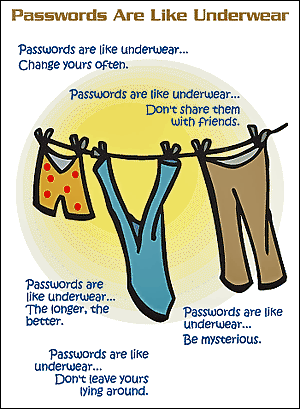
The Secrets to a Good Password


http://www.makeuseof.com/tech-fun/passwords-are-like-underware-pic/


How many log ins and passwords do you have?  I’ll bet that I can rival that.  In my position, I try out lots of new web 2.0 tools and almost all of them have a password and log in.  I know that I have hundreds of log ins and passwords to keep up with.  Today, it is impossible to conduct business, do your job, shop, etc, without accumulating a list of log ins and passwords.  

This is true of our students as well.  Just at school, they have a number to key in for lunch, a log in and password for AIMS, a log in and password for logging into the internet and possibly several other log ins for various programs.  These are the times that we live in. As teachers, we tend to cringe at the thought of having students learn yet another log in or password.  In fact, we cringe at having to learn our own user names and passwords.  We might see it as just one more thing taking time away from learning.  

In our district, we have moved to individual log ins for each person accessing the network.  Students K-12 all have a unique log in and set a password.  This provides students with access to their own working space on the network.  Students have a place to save and share their work.  This work is accessible from any computer on the network as long as they are logged in as themselves.  This also allows the district to customize content and access for students and teachers, giving more access to those who need it and protecting students under the FERPA and CIPPA guidelines. This also serves as a protection.  It gives accountability to the person who is logged on for the activities that happen while they are on the computer. 

 All of this to say, there are reasons for log ins and passwords, and passwords and log ins are not going away any time soon.  So, just as it is important to teach kids other life skills like learning their address and phone number, putting their name on their paper, stop, drop and roll, look both ways etc., it is also worth the time to teach and model how to use log ins and create, remember and keep passwords private. We can not just say, my students will never be able to remember their password, we need to teach them the skills to either remember or store passwords in a safe and private place.  It is a bit of a hassle at first.  Kind of like teaching a child how to tie a shoe.  At first, this is pretty time consuming, but as a former Kindergarten teacher, faced with multiple shoes to tie each day, I learned quickly, that taking the time to teach the skill to the child saved everyone much time in the future. 


Here are a few suggestions for teaching and modeling the skill of keeping up with passwords and log ins.

1. When possible use a log in that is familiar and makes sense to you.  (passwords should be more mysterious, but should still make sense to you.)
2. If the log in is given to you, and doesn’t make sense, invent a connection that helps you remember.  
3. Teach students to write their log in and password information down and keep in a safe place. Perhaps in day planners, etc.  
4. With younger students, you might want to have kids write their passwords on a card and keep in the teacher’s password “safe”.  
5. With younger students, give them a category for their passwords to help cue them if they forget.  ex.  favorite animal
6. When all else fails, passwords can usually be reset.  

Please don’t let passwords become a roadblock for student access to new learning tools.

Video of the Week


The 21st Century Learner

Interesting ideas and insights about our students from the MacArthur Foundation. 


Tech Triumphs


I had the opportunity to visit with a teacher involved in the TL21 grant this last week.  She shared that integrating technology into her lessons in creative and innovative ways has brought back her love for teaching.  Technology has helped her push herself to think and be allowed to move beyond the box. She is doing a fabulous job of teaching to the standards but the use of technology has added a bit of fun and creativity that she had been missing.  I believe that we are all happier and do a better job of learning (and teaching) when we feel challenged and affirmed to be creative and innovative. Technology might not be the avenue you take to add creativity and innovation into your teaching, but I would encourage you to look for ways to incorporate new creativity and innovation  throughout your lessons.


Digital Citizenship


This is nice, straight forward video about Digital Citizenship from  Commonsense.org. Would be great to share with kids and then discuss.


Pin It Now!